0 / 5000
Reference image to influence the style or content of the output.
Seed unlocked - will use random seed
AI Video Editor Online | Runway Gen-4 Aleph
Edit video online with Runway Gen-4 Aleph, an in-context AI video editor that transforms existing footage through text prompts. Upload a short clip, describe the edit — swap environments, add or remove objects, change lighting, transfer visual styles — and generate a modified version with frame-by-frame temporal consistency. Gen-4 Aleph processes your input video through a scene-understanding architecture that recognizes objects, depth, and lighting before applying edits, preserving original camera motion and subject movement while changing only what you specify.
What is Runway Gen-4 Aleph?
Runway Gen-4 Aleph is an in-context video editing model that modifies existing footage rather than generating video from scratch. The model processes your input clip through a scene-understanding pipeline — analyzing objects, spatial relationships, depth layers, and lighting conditions — then applies your text prompt as a targeted transformation while maintaining temporal coherence across all frames. This approach preserves the original camera motion, subject movement, and scene composition that would be lost with regeneration-based editing.
Gen-4 Aleph excels at transformations that traditionally require compositing software and manual frame-by-frame work: relighting entire scenes, swapping locations or seasons, adding weather effects, removing unwanted objects, or applying artistic style transfers. The model supports optional reference images to lock in specific visual directions, plus a seed parameter for reproducible variations during iterative editing.
AI Video Editing Capabilities
Four categories of AI video editing with Runway Gen-4 Aleph — camera generation, object manipulation, environmental changes, and visual style transfer.
Camera and Shot Generation
Generate new camera angles, extend shots, or transfer motion between clips. Gen-4 Aleph creates reverse shots, low angles, aerial views, and tracking shots from your original footage while maintaining subject consistency and motion continuity across generated frames.
- Novel view synthesis for alternate camera angles
- Shot continuation and sequence extension
- Motion transfer between different clips
Object Manipulation
Add, remove, replace, or retexture objects within video scenes. Gen-4 Aleph matches inserted objects to the scene's existing lighting direction, shadow angles, and perspective, producing composites that maintain visual coherence without manual masking or rotoscoping.
- Object insertion with scene-matched lighting and shadows
- Object removal and background reconstruction
- Retexturing and material replacement
- Subject extraction (green screen effect)
Environmental and Atmospheric Changes
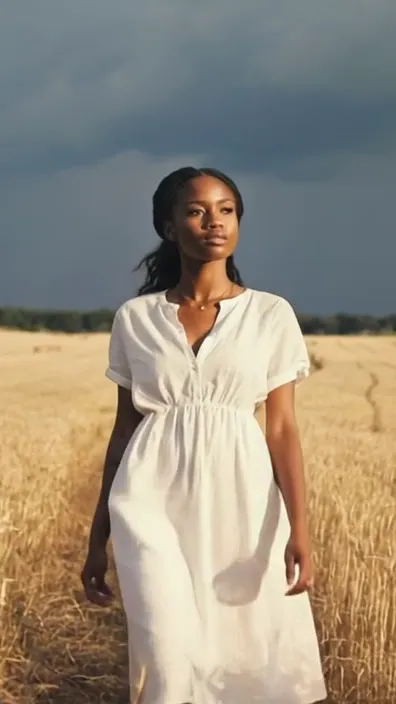
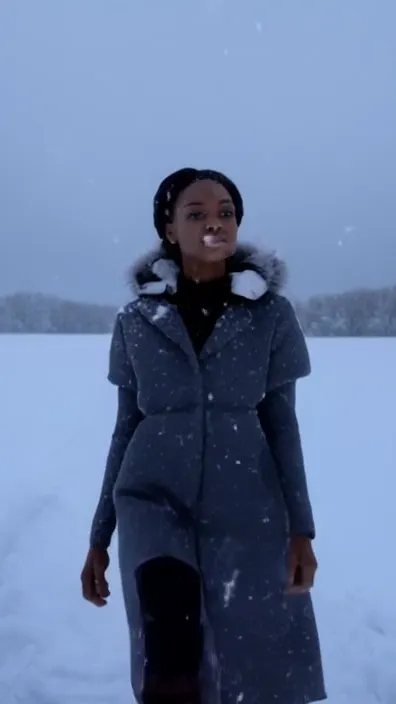
Modify location, season, weather, and time of day without reshooting. The model preserves subject position and camera movement while transforming the surrounding environment — converting a sunny field to snowfall, adding volumetric fog, or shifting golden hour to blue hour.
- Location and season transformation
- Weather effects — rain, snow, fog, dust
- Time-of-day relighting — dawn, dusk, night
Visual Style and Appearance
Apply artistic style transfers, color grading, and character appearance changes while preserving motion and structural integrity. Use reference images to match a specific visual direction, or describe the target aesthetic in your prompt — vintage film grain, neon cyberpunk, watercolor, cinematic teal-and-orange.
- Style transfer guided by reference images
- Character appearance and wardrobe changes
- Color grading and relighting
Technical Specifications
Runway Gen-4 Aleph is an in-context video editing model that processes input footage and outputs modified video with temporal consistency, coherent lighting, and preserved motion.
- Input: MP4 or WebM, maximum 16 MB file size
- Processing: first 5 seconds of the input clip
- Aspect ratios: 16:9, 9:16, 4:3, 3:4, 1:1, 21:9
- Output: 24 FPS, up to 1280×720 resolution
- Reference image support for style and content guidance
- Optional seed parameter for reproducible variations
How to Edit Video Online with AI
Three steps to edit video online — upload a clip, describe the transformation, and generate the edited version.
1. Upload a Clip
Upload an MP4 or WebM video (up to 16 MB). The AI video editor uses the first 5 seconds of your clip. Choose an aspect ratio — 16:9, 9:16, 4:3, 3:4, 1:1, or 21:9 — to match your target platform.
2. Describe the Edit
Write a text prompt describing the transformation. Focus on what should change — lighting, environment, objects, or style — rather than describing the entire scene. Optionally add a reference image to guide the visual direction.
3. Generate and Iterate
Generate the edited video and review the result. Refine your prompt with incremental adjustments rather than complete rewrites. Use the seed parameter to lock in a variation and make controlled changes across iterations.
Prompting Guide for AI Video Editing
Effective video editing prompts describe what should change, not what the scene already contains. The model sees your input video — focus your prompt on the transformation you want applied.
- Lead with the transformation: "make it winter" or "add warm golden-hour lighting"
- Specify objects to add or remove: "remove the crowd in the background" or "add neon signs on the buildings"
- Use reference images to lock in a specific style, color palette, or texture direction
- Keep prompts focused on one category of change — mixing style transfer with object edits can produce conflicting results
- Iterate with small refinements rather than rewriting the entire prompt between generations
AI Video Editing Use Cases
AI video editing is among the fastest-growing categories in creative software. Video editors using AI tools report 80% reduction in production time and 70-90% cost savings compared to traditional post-production workflows.
Creative Style Transfer
Transform footage into a different visual style with AI video editing — vintage 8mm film grain, neon cyberpunk, soft pastel, watercolor, or cinematic teal-and-orange. Gen-4 Aleph applies style transformations frame by frame while preserving motion, timing, and structural composition. Use reference images to match exact color palettes and textures.
Product and Brand Refreshes
Update product videos for seasonal campaigns, rebranding, or A/B testing without reshooting. Swap backgrounds, change product colors, adjust lighting to match new brand guidelines, or place products in different environments. 73% of consumers prefer video when learning about products — AI editing lets teams produce more variants from fewer shoots.
Social Media Variants
Generate multiple versions of the same clip for TikTok, Reels, Shorts, and YouTube. Change style, mood, environment, or time of day to test which variant performs across different platforms and audiences. 85% of marketers say short-form video is their most effective content format — AI video editing produces variants in minutes instead of hours.
Cinematic Post-Production
Add atmosphere, weather effects, and dramatic lighting to raw footage. Generate volumetric fog, rain reflections, golden-hour relighting, or lens flares that match the scene's existing depth and camera motion. Gen-4 Aleph maintains temporal consistency across all added effects.
Location and Season Changes
Convert a summer park scene to autumn foliage, shift a daytime street to nighttime neon, or transport subjects to an entirely different environment. The AI video editor preserves subject position, clothing, and motion while transforming everything around them — eliminating the cost and logistics of on-location reshoots.
Object Editing and Cleanup
Add, remove, or replace objects within video frames. Remove unwanted elements — crew equipment, bystanders, brand logos — or insert new props with scene-matched lighting and perspective. Gen-4 Aleph reconstructs the background behind removed objects and matches shadow direction for inserted ones.
Limitations and Best Practices
Output quality depends on input footage — stable video with clear subjects and consistent lighting produces the most coherent edits. The model processes only the first 5 seconds of your clip, so position the key content at the beginning. Heavily detailed scenes or extremely broad transformations (changing everything at once) can reduce fidelity. For complex edits, break them into sequential steps — change the environment first, then adjust lighting in a second pass.
Gen-4 Aleph is subject to training data coverage and model architecture constraints. Some niche visual styles or unusual scene compositions may produce less accurate results. When precision matters, use reference images to anchor the visual direction and the seed parameter to maintain consistency across iterations. Maximum output resolution is 1280×720 at 24 FPS.
AI Video Editor FAQ
Frequently asked questions about AI video editing with Runway Gen-4 Aleph.