0 / 20000
Nano Banana Image Generator & Photo Editor
Create images from text or edit uploaded photos with the Nano Banana image generator. Use Text to Image for a new scene, or Image to Image to change a photo and combine references. Choose your model, frame shape, and available output size in one workspace.
Explore Gemini Nano BananaText to Image or Image to Image?
Start with text to create a new scene. Start with an image when you want to edit a photo or use its subject, composition, or style as a reference.
Text to Image
- Starting point
- A written description of a new picture.
- Use it for
- Original illustrations, concept art, and scenes created from a written idea.
- What to describe
- Describe the subject, its surroundings, and where the main elements belong in the frame.
Nano Banana Image to Image
- Starting point
- Your photo, artwork, or reference images, plus instructions.
- Use it for
- Photo edits, new backgrounds, style changes, and compositions built from your own assets.
- What to describe
- Identify the change you want and the role of each reference, including any details to retain.
Give Your Image a Clear Focal Point
Describe the main subject, then the setting, lighting, and space around it. For a campaign visual like this composition, decide which element should stand out and where any headline will go.
Create Your Composition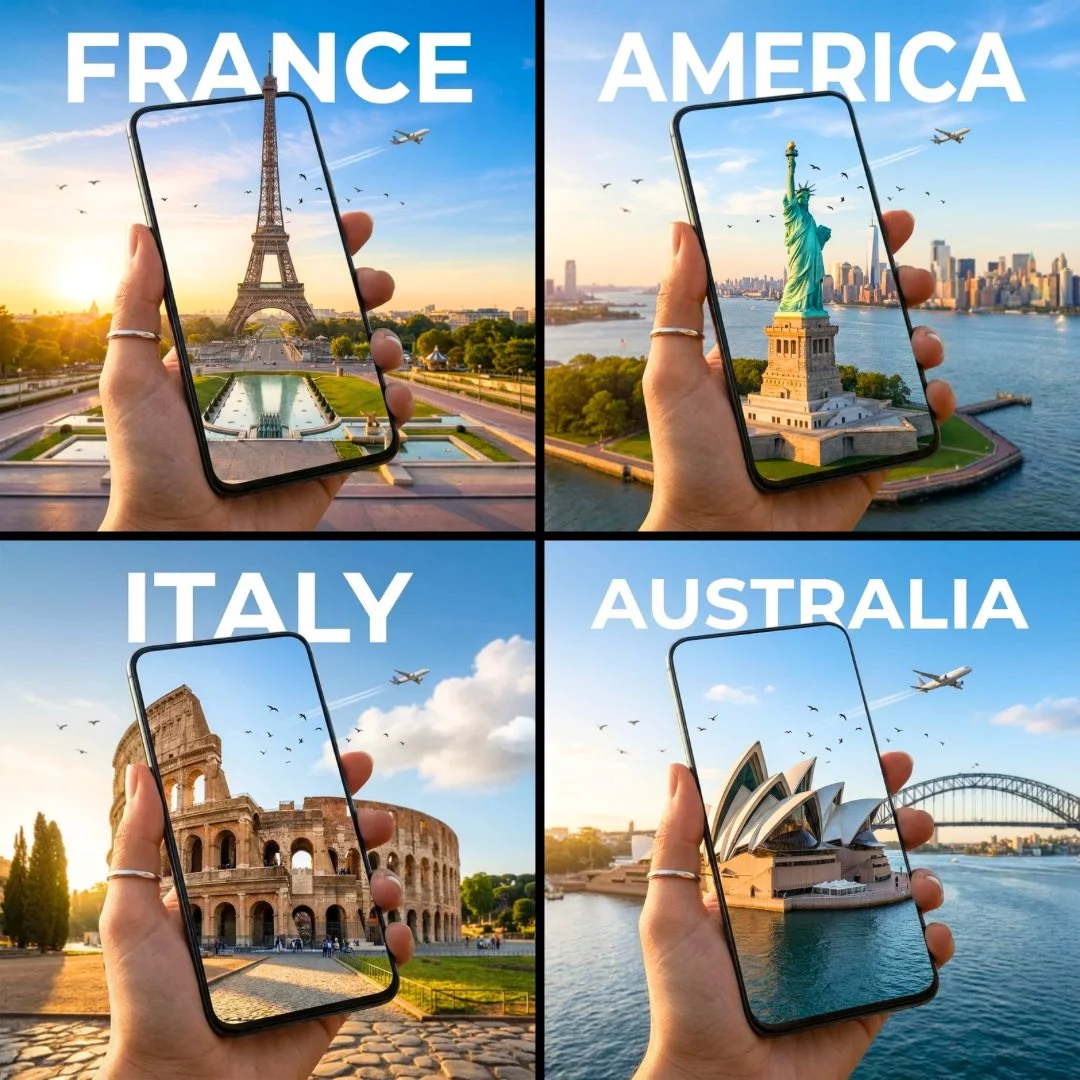
Create Product Images, Portraits, and Posters
Choose a task, then describe the result you want. For photo edits, use your own image as the starting point.
Build a Product Scene
Upload a well-lit product photo and describe a studio or lifestyle setting, including the surface and lighting. For a shop listing, check that the result still matches the product’s shape, color, and label.
Restyle a Portrait
Start with a clear portrait and describe a new outfit, background, or artistic style. Specify which facial features and other details should stay the same so the requested change is clear.
Compose a Poster or Cover
Choose the final format, place the subject, and leave space for a headline. Specify any short text you want in the image; add longer passages in a design editor after choosing the composition.
Combine Subject and Style References
Use one image for the subject and another for the style. Identify the palette, texture, or lighting to borrow, and describe how the references should work together in the final image.
Choose Your Image Settings
Choose an aspect ratio for the composition and a resolution for the output size. Available options and reference limits depend on the selected model.
| Setting | What it changes | How to choose |
|---|---|---|
| Aspect ratio | The shape of the frame and the space around the subject. | Match the final placement: square for a square post, portrait for a vertical design, or landscape for a wide banner. Set the ratio before generating to reduce later cropping. |
| Resolution | The output size and room for fine detail. | Match the size to your intended display or export. Increasing resolution does not change the aspect ratio or fix the composition. |
| Reference images | The visual information available for an edit or a new composition. | Add a reference only when it contributes a useful subject, style, or layout. Remove images that give conflicting directions. |
Choose a Nano Banana Model for the Task
Start here for new images and focused photo edits. Its updates to text rendering and consistency across edits are relevant when refining lettering or revising the same subject.
Nano Banana Pro
Consider Pro when several objects, spatial relationships, or layout requirements need to work together in one composition.
Nano Banana 2
Continue a Nano Banana 2 image-to-image workflow when matching earlier results matters. Keep the original references and settings when preparing another image in the series.
Continue with Your Image
Nano Banana Image Editing and Settings FAQ
Practical answers about uploads, reference images, image settings, and making the next edit.
Create Your Next Image with Nano Banana
Describe a new image or upload a photo to edit. Choose your model and settings, then generate a result to refine or download.
Create Your Image