Nano Banana 2.1 Image Generator
Create new images and refine your photos with Nano Banana 2.1. Explore its updated text rendering, image quality, and editing capabilities for your next visual project.
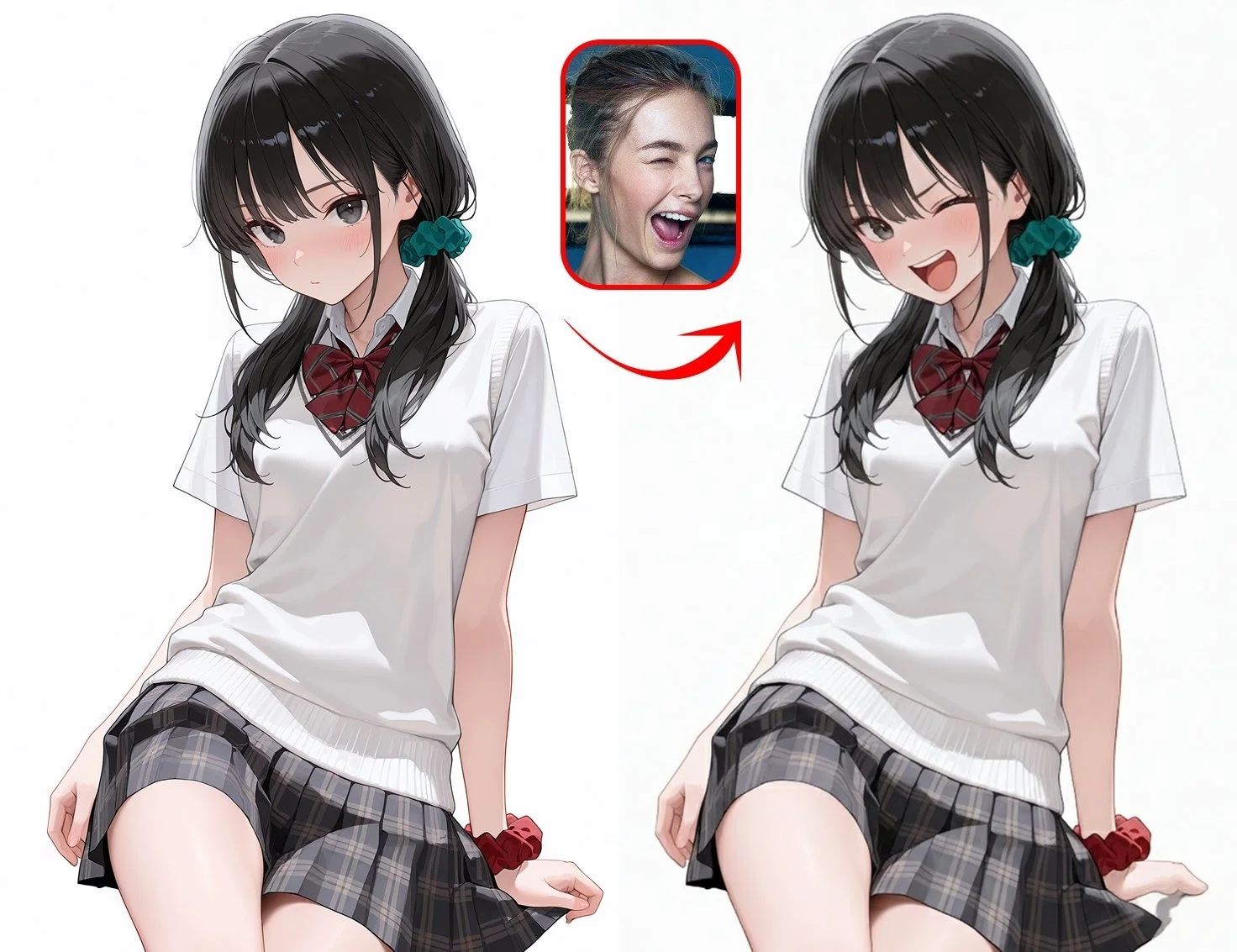
Nano Banana 2.1 is an AI image generation and editing model for creating pictures from text and transforming reference photos. On Gemini Nano Banana, it is a starting point for new image projects and for revisiting edits that did not work in Nano Banana 2. The useful question is which part of your task benefits from the update: lettering, repeated edits, an unusual frame shape, or a more demanding composition.
What Changed—and Which Changes Matter to Your Project?
The model’s release notes identify improvements in image quality, instruction following, text rendering, and consistency across successive edits. They also list a specific tiling fix for 1:4, 4:1, 1:8, and 8:1 images at 2K and 4K. Our recommendations below connect these documented changes to lettering, editing, and layout decisions.
Text Rendering: Revisit Short, Integrated Lettering
A useful first task is a poster where a short headline belongs inside the artwork, or packaging where lettering must follow the object’s surface. In those cases, generating the text and image together can help the words fit the visual scene. A document containing long passages has a different requirement: exact typography and easy revision matter more than integrating letters into a picture.
Our recommendation is to try 2.1 when an otherwise usable visual was held back by short lettering. Keep a design editor for dense copy, required fine print, or text that must remain independently editable. A model change can address image generation; it does not turn the result into a layered layout file.
Repeated Edits: Judge the Series, Not Just the First Result
The relevant task is a sequence such as changing a product’s background, adjusting the lighting, and then preparing another composition. A strong first result says little about whether the subject survives those later changes. If a previous workflow lost the label, face, or outfit during revision, that sequence is worth trying with 2.1.
Keep the original reference alongside the accepted intermediate image. Use the intermediate image for a change that builds on its composition; return to the original when correcting the identity or shape of the subject. This gives you a way to recover instead of allowing an unwanted detail to become part of every later version.
Wide and Tall Images: Separate Tiling from Composition
The documented panoramic fix is relevant to banners and tall designs that previously showed repeated blocks or visible joins. Those artifacts are different from a misplaced subject, an awkward crop, or insufficient room for a headline. Treat the update as a reason to retry the affected output, not as a substitute for planning the frame.
Choose a supported aspect ratio and resolution in the generator. For a wide banner, place the product and reserve room for copy before generating. Then inspect the outer edges and any repeating background texture at full size. If the original problem was placement rather than repeated texture, revise the composition instructions as well.
Nano Banana 2.1 vs Nano Banana 2: When to Switch
For a new project, start with 2.1. For a continuing project, separate unfinished work from images that are already approved. Replacing every asset simply because a new version exists can introduce visual differences without solving a real problem. The strongest reason to switch is a recurring failure that overlaps with the update’s stated focus.
| Project situation | Recommended next step | Why |
|---|---|---|
| Starting a new image project | Begin with 2.1 | It includes the updated image, text, and editing capabilities |
| Short lettering repeatedly spoils an otherwise useful design | Retry that brief in 2.1 | The problem aligns with the text-rendering update |
| Subject details drift across a sequence of edits | Revisit the sequence from a clean source | The update targets consistency across edits |
| An approved series already has the desired appearance | Keep approved images; trial new work separately | Continuity may matter more than regenerating completed assets |
| The result needs exact small print or editable text | Finish the typography in a design editor | Switching image models does not solve the need for editable type |
For a series, choose one representative unfinished asset before changing the rest of the workflow. Keep the source, brief, and shared settings consistent. Accept a replacement when it solves the named problem while preserving the approved color palette, subject appearance, and composition of the series.
Nano Banana 2.1 vs Pro: Choose by the Structure of the Brief
The model family positions 2.1 as the efficient image-generation and editing option, while Pro addresses more complex visual tasks. Our recommendation is to start with 2.1 for a defined subject and a straightforward transformation. Consider Pro when the difficulty is coordinating several requirements within one scene.
For example, changing a portrait’s background is a focused edit. Arranging several products at different depths, with specified relationships and a clear text hierarchy, is a more constrained composition. If that structure repeatedly breaks in 2.1, try Pro with the same brief and check the object placement and hierarchy before choosing a result.
Identify the failure before switching. Incorrect placement may justify another model; unclear instructions should be clarified first. A tiny wording correction on an approved layout may be better handled directly in a design editor than by regenerating the whole scene.
Nano Banana 2.1 vs GPT Image 2.5: When an Alternative Helps
GPT Image 2.5 is another image creation and editing option in the workspace, with published emphasis on reference preservation and precise edits. It is worth considering when a clear brief repeatedly produces an unwanted interpretation in 2.1, particularly when the subject needs to remain recognizable during a change.
Keep a working 2.1 result when it already meets the brief. To assess an alternative, use the same source and request one change, such as replacing the background while retaining the product. Compare whether the requested edit happened and whether the silhouette, label, and lighting still fit the image. Choose the result that needs fewer corrections for that deliverable.
Match the Workflow to the Deliverable
For a product campaign, separate exploratory imagery from factual product representation. Use generation to explore settings, surfaces, and lighting. When the result represents an item for sale, preserve the original photograph as the reference for its shape and packaging. A polished background is useful only if the product still matches what the customer will receive.
For portraits, distinguish an isolated image from a recurring character series. A standalone illustration allows more stylistic variation. A series needs stable identifying details, so keep a reference set and a saved approved version. Change the environment or clothing deliberately rather than rebuilding the person from a text description each time.
For a poster, decide whether the text should be part of the scene or a separate graphic layer. A painted sign benefits from integration into the image; campaign wording that changes weekly benefits from remaining editable. Make that choice before spending generations on a visual that will be difficult to update.
Settings That Support the Decision
Choose the final frame shape first, establish the composition, and then select an available output size suitable for delivery. Judge the work at its intended viewing size as well as close up. A high-resolution file may reveal more detail, but it cannot repair the wrong object arrangement or make incorrect lettering accurate.
During a version comparison, hold the available settings constant. During an ordinary creative task, change the control that addresses the problem: aspect ratio for framing, references for appearance, and instructions for the requested transformation. Avoid adjusting everything at once, because the next result will be harder to interpret.
Use the Nano Banana image generator for the full text-to-image and photo-editing workflow. Once the still image is ready, open the image-to-video workspace to add movement with a video model. Keeping those stages separate lets you settle the subject’s appearance before directing the action.
Frequently Asked Questions
Start Your Next Image with Nano Banana 2.1
Bring a visual idea or a reference photo, choose the image settings, and create a version you can refine.
Create with Nano Banana 2.1